Working with Schedules in Stratus
Stratus schedules provide a convenient way to review, organize, and update information across multiple returns. Several tools are available to help you customize how information is displayed, locate specific records, and make updates more efficiently.
Resizing and Pinning Columns
You can easily resize columns by hovering over the edge of a column header until the double-arrow cursor appears. Click and drag to adjust the column to your desired width.
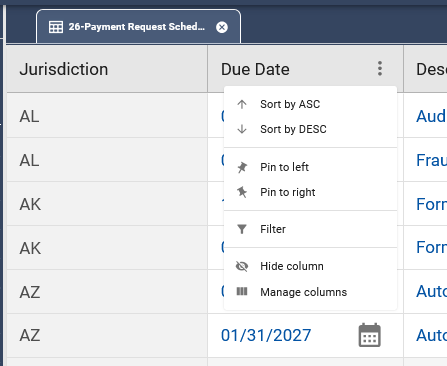
You can also pin columns to keep important information visible as you scroll through the schedule. To do this, click the three dots on a column header and select the option to Pin Left or Pin Right.
Sorting Schedule Information
You can sort schedule information by clicking on a column header or by using the column menu.
- Click the three dots on the column header you would like to sort.
- Select Sort by ASC to sort in ascending order or Sort by DESC to sort in descending order.
- The schedule will rearrange the records based on your selection.
Rearranging Columns
You can customize the order of columns within a schedule to make frequently used information easier to access.
Click and drag a column header to move it to a different location within the schedule.
You can also adjust the width of columns to better display their contents.
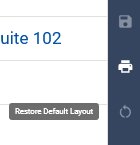
You can reset the columns to their default order by clicking on the restore button on the right side.
Filtering Schedule Information
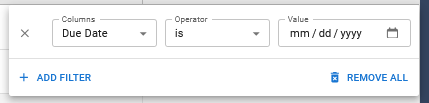
Filters allow you to narrow the information displayed in a schedule so you can focus on specific records.
- Click the three dots on the column header you would like to filter.
- Select Filter.
- Enter or select your desired filtering criteria.
- The schedule will display the records that meet your criteria.
Showing and Hiding Columns
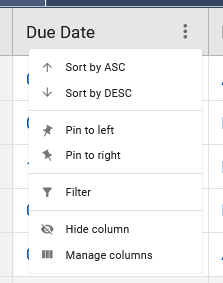
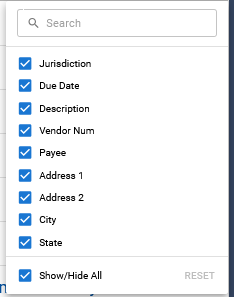
You can customize which columns appear in a schedule.
- Click the three dots on a column header.
- Select Hide Column to remove that column from your current view.
- To manage the columns displayed, select Manage Columns.
- Check or uncheck the columns you would like to show or hide.
This is particularly helpful when working with schedules that contain a large number of columns.

Editing Schedule Information
Editable fields within a schedule allow you to enter or update information directly.
- Click the field you would like to update.
- Enter the appropriate information.
- Continue making any additional changes.
- Click the Save icon on the right side of the screen to save your changes.
Important Note: Be sure to save your changes before navigating away from the schedule.
Copying and Pasting Information
You can use copy and paste within schedules to populate recurring information and reduce repetitive data entry.
Select the information you would like to copy, copy it, and paste it into the appropriate fields. Review the pasted information for accuracy and save your changes.
Additional Tips
- Use sorting and filtering to quickly locate specific records.
- Hide columns that are not needed to simplify your view.
- Rearrange columns to keep frequently referenced information together.
- Review all changes before saving, particularly when copying and pasting multiple values.